Skip navigation

Alright, so continuing our discussion on scripting with Bash scripting in Unix and Linux.  In the same way that command interprets a script to perform actions in order so does bash.  What’s the difference then?  The sheer volume or tools available to script and manipulate the environment is greatly increased.  The manageability of output, the variety of conditionals, arrays, and integration of the shell into the environment.

It’s worth mentioning up front, I could spend days on the subject of any of these scripting languages.  However for the sake of space and interest, I will still keep things high level.  It’s ALSO worth mentioning that Bash/shell scripting is something of a nix requirement.  Not that you have to know shell scripting to use the OS, but it’s certainly a primary part of the culture.  Bash scripting also works within OSX environments (since it’s built on BSD), however some research and testing will be required to find the similarities between their nix and others which leads to my next topic…

Linux and Unix {

If you are reading this, I will assume you know what Linux and Unix are.  If not, here’s some reading material for Unix and Linux.  What you may or may not be aware of is that although there is a great level of standardization as maintained by IEEE POSIX standards, there is also a lot of distribution specific tools or practices.  In other words, a person can generally port work from one distribution to another, but should never assume a one size fits all solution across the board.  Which is precisely why there are so many distributions, because one size does not fit all, at least not to everyone’s tastes.

I also want to take a moment to point out that this is not a flaw. Although standardization is a good thing, limited options are not. There are other standards that GPL licensed software (generally linux)adheres to that gives it reliable standards or compliance. They also maintain partial POSIX compliance as well. It’s an interesting subject, and the differences are fairly minor in most cases. Do not be scared by the options, determine what it is you want and go from there if you are interested in trying.

Now a days the user experience one has come to expect from Windows or OSX is easily found with a popular Linux distribution (Ubuntu and Fedora immediately come to mind).

     Bash Scripting {

Now lets take a look at a very simple script that I’ve briefly modified from Mendel Cooper’s guide for an example on here:


#!/bin/bash#Log Cleanup
#Author: Daniel Belcher
#4/30/11
#Built for tutorial purposes
#Idea for script from beginner example
#in advanced bash scripting guide:
#http://tldp.org/LDP/abs/html/sha-bang.html#Variable declaration
LDIR="/var/log/"
DATE=`date '+%m%d%y'`
RUID=0
E_USER=1#Checking for root user, exiting with error code 1 if not root
if [ "$UID" -ne "$RUID" ]
then
          echo "User needs to be root"
exit $E_USER
fi
#Copying the current messages and wtmp logs to an archive with date code
cp $LDIR"messages" $LDIR"messages."$DATE;
     cp $LDIR"wtmp" $LDIR"wtmp."$DATE;
#Taking the last 10 lines from that log and writing it to the current
#messages and wtmp to reset them.
tail -n 10 $LDIR"messages."$DATE > $LDIR"messages"
          tail -n 10 $LDIR"wtmp."$DATE > $LDIR"wtmp"                
   sleep .5
#Finding all messages and wtmp files with an
#access time of 7 days or more and deleting them.
find $LDIR -iname messages.* -atime 7 -exec rm {} ; #could also swap –exec rm etc for –delete 
             find $LDIR -iname wtmp.* -atime 7 | xarg rm 


Save as a .sh

then

chmod +x scriptname.sh

Now same as with our batch script, lets focus on 4 things.  Hopefully some similarities begin to present themselves.

  1. Sequence
  2. Command usage
  3. Output usage
  4. Conditional logic

Sequence:

Now similarly to the command shell, Bash reads the script line for line.  However instead of GOTO statements in Bash, we would actually build functions. (I do not have an example in this script but the syntax is generally name_of_function() { work to perform }.  I’ll discuss this more with PowerShell and VB script).  All lines are read as if they were typed at the console.  Here you will see I also do something that we didn’t do within the batch file.  Variable declaration (LDIR=”/var/log/”) then I can call it again in the script as $LDIR.

This allows you to take a commonly used command, object, integer, or string and set it to something easily repeatable inside the script.  Variables can be declared at run time, as an argument, or produced from script output to name a few methods for declaration.  They are integral to programming in general.  As far as sequence is concerned, as long as the variable is declared before it’s called you are fine.

Command usage and Output usage:

Now hopefully you are seeing that the commands available in a shell are what does most of the heavy lifting in terms of work.  Something worth learning in command usage is piping.  Piping is taking the output of one command and using it as the input for another (to put it simply).  A visual I’ve always liked to use in understanding what is happening is this:

A lake brings water to your home.  A pipe exists between the lake and your faucet (very simple). On the course to your house a series of filters are applied to weed out what you don’t want from the water by the time it reaches your house.  In this case the lake is the source or original input, and the filters are the series of commands applied to the pipe before the final output at your faucet.

So in pseudo code: lake-water | filter-fish | filter-algae | filter-dirt > glass-of-water.drk

The end result is that water is transported through that pipe and all unwanted elements are removed until we finally have our desired glass of water to drink.

In this case we use:

find $LDIR -iname wtmp.* -atime 7 | xarg rm 

This will take the findings from the FIND command and pass it to xarg which initiates rm and deletes these files.

Hopefully this is beginning to paint a clearer picture of pipe and command usage.  Shells that allow for command piping are a God send and allow for some very elegant solutions to complex problems in simple one liners that a user could easily alias, but that’s another subject entirely.

Conditional Logic:

Now in an identical fashion to our batch file we are performing an IF statement.  IF statements are one of, if not the most, commonly used conditional statements.  Notice there is a very distinct difference in the syntax used here in comparison to the one we used in our batch.  The testing method and outcome are still the same however, so do not be deceived.  IF statements put simply are: if it’s this then do that.  Since conditional tests are capable of greater complexity (and will be with all other script engines we discuss going forward) it needs to be terminated so the script knows when the conditions or work statements are final. We close this IF statement in Bash script by spelling IF backwards FI.

The same is true for all conditionals within bash.  They will open spelled forward and close in reverse.  Elif … file case … esac; when you begin to learn what and how logic is applied in scripts you will know how to appropriately apply the syntax.

So what does this Bash script do?

The script opens with a shabang! (#!/bin/bash) which tells the shell that it’s a script to be interpreted by the bash shell found in the bin folder.

Next it declares 4 variables, LDIR (log directory path), DATE (current date no special characters month date year), RUID (Root user id), and E_USER (error code to use if the user fails our user check).

Now we check a shell variable $UID (current user’s ID #) and see if it’s different than the $RUID (-ne = not equal). If it’s not the root user we exit with the error code # assigned to $E_USER.

If we pass that check we will now copy the messages and wtmp files under the /var/log/ folder to their same folder as filename.currentdate.  Example: messages.050111

Now we take the last 10 lines of that file and output it to the primary log files messages and wtmp effectively overwriting the previous data and truncating that file.  > operator on the command line is a redirect (as we saw with our > nul in the batch file).

Finally we take and search that folder for all files following the archived file syntax and search for an access time greater than 7 days then we delete them.  I’ve used two different formats for deletion to show the different possible ways of doing this.

     } gnitidE shaB

} xinU dna xuniL

In my next post I’m going to break into vb scripting, which is a considerable departure from the shell relative scripting we’ve looked at so far.  However I will return to another form of shell scripting with PowerShell, stay tuned.


Just for another example, how would this script look utilizing a function?

#!/bin/bash#Log Cleanup 
#Author: Daniel Belcher 
#5/1/11#Variable declaration 
LDIR="/var/log/" 
DATE=`date '+%m%d%y'` 
RUID=0 
E_USER=1#Checking for root user, exiting with error code 1 if not root 
if [ "$UID" -ne "$RUID" ] 
then 
         echo "User needs to be root" 
exit $E_USER 
fi 
#Function to create backup, truncate, and purge old log files. 
cleanup () { 
                 cp $LDIR$1 $LDIR$1"."$DATE; 
                         tail -n 10 $LDIR$1"."$DATE > $LDIR$1 
                                 sleep .7 
                         find $LDIR -iname $1.* -atime 7 -exec rm {} ; 
                 return 0 
                 } 

#Calling function cleanup () and passing 1 argument

cleanup messages 
cleanup wtmp

exit 0

A lot cleaner.  Hopefully you can see the benefits of functions now, or even loops as we will examine in the future.


Stick to the Script Parts 1 – 4:

  1. Stick to the Script…
  2. Stick to the script #!/BIN/BASH…
  3. Stick to the script CreateObject(“Wscript.Shell”)…
  4. Stick to the Script PS C:> PowerShell …

If you survived this, was it just luck?

There is nothing on this earth that we can build or design that can not be taken away from us in the blink of an eye. All of what we have is fleeting, there is only that which we store up in heaven that holds any real value.

How does one do that? Through faith.

What does that mean ‘through faith’? To believe in Jesus Christ.

What does ‘believe’ mean? To continually embrace as Lord, Savior, and treasure of your life.

It is his to give, and it is his to take. The immeasurable amount of mercy that is shown to us to even draw our next breath is amazing! There is nothing this storm has taken that can not be brought back. There is also an amazing faith and resilience in the people of this state that I’ve grown to love, and a lot more heads that are looking up.

Praise God.

The level of destruction to Alabama after todays storms is amazing. So many lost lives, and shattered homes. There is a definitive need for care and assistance to people around where I live now, please pray for them, and pray for me as I seek ways to help then.

There is never a lack of purpose, and I do not believe that what has transpired here does anything less but point us towards what really matters.

So I was in Tennessee on Sunday for Easter, and the conversation came up regarding scripting and programming. Now I’ve heard a lot of people discuss scripting with a sense of unapproachable grandeur and well, nothing could be further from the truth. Some scripting languages share objects/classes/methods etc. as your more robust programming languages, but quite honestly, it’s just a method for causing objects to behave in a sequenced manner according to your wishes. Not much different than a script an actor might read from.

Much like actors, who perform better for certain roles, script languages have better fits in certain areas than others. I intend for this to be a multipart post to discuss different script languages moving forward, but lets start with the basics. I’m going to break down 4 popular, widely used, scripting languages and show a few simple examples of them at work.

“Well, how is that different than a program?”

Well, the primary reason they are different is programming yields binary files. Essentially all the coding you do is then changed into unreadable machine code that performs what the developer intended.

Scripting is code that tells a binary file what to do. The binary file that reads the script is called an interpreter. So it will dynamically take code that is human readable and translate it to the computer.

Scripting is very versatile, but generally speaking you aren’t creating anything, only controlling what presently exists. More sophisticated shells (bash, PowerShell) will allow you to extend functionality of current commands etc., but generally speaking it’s still scripting unless it results in a new program all together.

In the end, the dynamic nature of scripting makes it a preferable solution for real time solutions, and automation in computer infrastructures. It’s also considerably easier to debug and resolve issues as there aren’t lengthy compile processes between build outs. However, there are times when a script just won’t cut it and you need to build an application.

Batch Editing {

Let’s start with one that a lot of people in the windows world are already very familiar with and start establishing an idea of what a script is.

With batch editing, the .bat extension identifies to the interpreter that the file is to be read as a script by the command shell. Anything you can do within the cmd prompt can be sequenced and completed in a batch file. It’s read sequentially line for line and accepts GOTO statements as well as IF clauses and LOOPs.

Let’s break down a simple batch file I use for drive mounting and dismounting at login:


@echo off
Rem —————————————————
Rem Drive Mounter
Rem Author: Daniel Belcher
Rem Modify drive letters and paths to match need
Rem Place in Startup folder for login init
Rem —————————————————

Rem Check for Corporate connection
ping -n 1 addresstoping > nul
If %errorlevel% EQU 0 (GOTO MOUNT) Else GOTO UMOUNT

Rem Drive Mounter
Rem Modify this section to match your desired paths

:MOUNT
net use /p:yes > nul
net use h: \UNCPATHONE > nul
net use i: \UNCPATHTWO > nul
GOTO END

Rem Drive Umounter
Rem Modify this section to match paths for Umount
:UMOUNT
net use /p:no > nul
net use /d h: > nul
net use /d i: > nul
GOTO END

:END


I just want to focus on 4 things here.

  1. Sequence
  2. Command usage
  3. Output usage
  4. Conditional logic

Sequence:

As a batch file is read by the command shell its read line, by line. This is equivalent to someone typing these commands one after another. If you wish to jump around in the script you can use GOTO or RETURN.

The commands “net” and “ping” should be familiar commands to any windows administrator. They are all part of the native shells command base. This is fairly standard in any shell scripting which is more akin to controlling commands than objects.

As with all scripts there is an output to be utilized. When you are building a sequence it’s important to check for a return and respond accordingly. An example of output capture here is done with %errorlevel% which is a standard output variable with the command shell. It’s also possible to declare variables inside a batch file using SET VARIABLE = STRING/ACTION/STATEMENT (that’s a bit beyond scope for what I’m covering here). You will also notice I tail most statements with a > nul. What’s being done here is called a redirect, that is, redirecting the output to a file or another command, in this case a null value which causes no console output.

Finally conditional statements. As it’s name implies, it’s a statement that checks for a certain condition. In this short script we are checking if the value of our %errorlevel% variable is equal to 0. This is defined by the conditional IF. So what we are asking the script here is, if ping has no errors GOTO MOUNT, else GOTO UMOUNT.

So what does this batch file do?

It calls the command shell, requests that it pings addresstoping 1 time and if there is no errors (destination is reachable) it goes to mount the network drives to the local machine. If the host is unreachable it clears potential instances of those drive mappings and then closes out.

If you want more information on batch commands and batch in general, read up.

} gnitidE hctaB


In my next post(s) I will give some examples of Bash scripting, PS scripting, and VB scripting.  I will also dedicate more focus towards them and try to explain their strong points and usages. 


Stick to the Script Parts 1 – 4:

  1. Stick to the Script…
  2. Stick to the script #!/BIN/BASH…
  3. Stick to the script CreateObject(“Wscript.Shell”)…
  4. Stick to the Script PS C:> PowerShell …

As I slowly gained consciousness on my swivel chair to the heavy panting of my corgi in my face, I realized we were in the middle of a pretty nasty storm.

So I got the kids and wife up (well she was already up) and went downstairs to wait it all out.

Score us 0 storm 3.

1 Table umbrella, smashed.
1 glass table, shattered.
1 dog house, demolished.

Also, our trash can was down, so storm 4…..And no power, 5.

I’m thankful no one was hurt, and just as quickly as the storm came it was gone. I’m sure there is a metaphor in there somewhere, but I’m too tired to think.

Hmm, lack of sleep.

Storm 6….

Roughly 1978 years ago, an act occurred, to fulfill a plan set in motion before time began. Before the earth and stars,  before light or dark.  That I might be saved from the sins of man.

Glory to God, and praise to Christ for taking the wood and the nails that I would not feel the wrath of He who sent Him. A right justice that a wretch like me deserves for an existence in defiance to the God who made me.

God’s grace is immeasurable, his love unstoppable, and my need….undeniable.


Recently we were told to take our 7 month old daughter Maggie to be reviewed for early intervention. She qualified! In all areas of development! It was like being hit with a sack of rocks. More so for my wife even than I. Our daughter nearly died during child birth, and was without decent oxygen and blood circulation before they successfully removed her. So to some end we knew that this might be possible, and we of course knew she was behind or not quite right on some of her milestones. However, having it there in your face is just overwhelming.

Fortunately through the state of Alabama and members of our faith family who are occupational therapists, we gathered a lot of great information and had a review conducted in our home for placement almost immediately after the initial review. We were told hand in hand is the one of the top early intervention places here in Alabama so we sought placement with them.

We trust God for everything.  He who promised is faithful, and if he has his eye on the sparrow we knew that he had his hands firmly rested on us.  That being said, Amanda and I spent a lot of time discussing in depth our Savior and then I placed the infamous question on my wife. 

“What if God is most glorified in our daughter being mentally handicapped?”


The Joy of a Husband {

I take my role as Spiritual leader in this house very seriously.  This was a time of necessary spiritual growth, and I was lead to, well, lead.  However, this was a time when I wanted to give my life up for my wife so she wouldn’t feel that pain of facing this realization!  We can’t place our joy in anything that is not eternal; our children included.  They are a blessing, and a source of joy, but inevitably we must fix ourselves firmly on our Savior. 

Though my flesh and my heart may fail me, the Lord is my strength and my portion forever.

It was a night of tears, prayer, and anguish.  Amanda continues to amaze me, she recognized immediately that she was more interested in the hand of blessing and not the hand itself.  The most amazing part of that to me, was she was MORE upset that she wasn’t loving God as she realized she should.

                   Wow. 

I continued to pray over my wife and daughter as she prayed for herself and for Maggie.

3 Amazing things happened:

  1. The following day our sister in law sent an email pouring her heart out to Amanda essentially discussing the exact same thing we had discussed in private the night before.  Also saying that she had felt compelled to pray for complete healing for Maggie, and was praying for our peace.  It’s worth mentioning no outward signs have been given regarding the emotional struggles my wife has been dealing with. –thank you Spirit-
  2. A few minutes after our prayer request went out for Maggie to be accepted into Hand in Hand, another email came in to let us know we were accepted into Hand in Hand.
  3. My wife felt the Spirit move and found Joy in seeing God at work in her life.  The word was alive and she now understands what it means to find Joy in God.  This of course, to me, is the greatest.
    The greatest Joy of a teacher is when their students can grasp it.  More importantly when that student is your best friend and greatest earthly love.  I’m so thankful God allowed me to be a part of that growth.

    } dnabsuH a fo yoJ ehT


So now where are we on Maggie? Hey, don’t you have a son too?

The Joy of a Father {

During the giggly bear’s evaluation (Maggie), they had marked her off for quite a few things.  Some of the more specific ones was not even attempting to mimic speech, using her hands around the midline, bring things to her mouth, lift up on her hands while on her belly.

So guess what she’s started doing?  Yea, and today while I was at work she apparently was using a sippy cup.. 

sippy cup

We aren’t where we need to be yet, but I have faith we will get there.


Now for my road dog (Will).  Will has a habit of grabbing phones and having long fake conversations with people.  Lately he’s become increasingly more upset that I go to work everyday.

“Why you go work air-day daddy?” “You go work day daddy?” “No, you no go work day daddy.”

It’s sweet, but it’s become something that grates on my nerves constantly explaining myself for keeping the lights on to my kid…

Anyway, today Amanda gave me a heads up that he was pretending to talk to me on her cell phone over messenger.  So I stopped what I was doing and dialed her cell phone and had a (surprisingly) lengthy conversation (well for a 3 year old) on the phone.  As I hung up the phone and I heard:

“Ok, I go now, I love you very much daddy”

… there aren’t words.  Seeing my son grow, seeing his love, his personality, and now starting to see signs of his grasping of the Gospel….. As we were pulling into the neighborhood the other night from who knows where hearing that little voice:

“Mommy, Jesus loves you, and he loves me too.”

                   ….. The prayer that my son will one day be my brother ….

talkin to daddy

…….We’re working on it!

} rethaF a fo yoJ

So recently we had to perform an AD cleanup of aged computer objects in our environment.  For a lot of companies this is a pretty standard procedure, for others, it’s just ignored (as was the case for us for a while).

Anyway, in the course of completing this task we had looked at a few scripts and tools that others had written/published around the internet and I inevitably got the bright idea to sit and write a tool for us to use in PowerShell.  So I setup my goals and fired up the old editor and went to work.


Objectives:

  • Identify aged objects
    • To identify aged objects, I went with the PasswordLastSet property of the object. There really isn’t a much better one to utilize, and it works off a 30 day cycle so it’s close enough.
  • Write out data for records
    • For write out I built a switch (–report) that will utilize the export-csv cmdlet to export a record of machines to the current users desktop.
  • Move objects to different OU
    • For moving objects I used the Move-ADObject cmdlet from the activedirectory module available with win 7 and server 2008 features.
  • Generic (no non standard add ins)
    • To keep it generic I chose to use the activedirectory module since we are running on 2008 servers, and migrating to windows 7. This insures future state usage, and prevents additional downloads or installs for functionality.
  • Modular (sometimes you just want a report)
    • To keep it modular, I built the (-move) switch. Unless the user explicitly defines this then the script will only report what was requested. Either to console output, or to a csv on the desktop (-report).
  • Versatile for targeting object date ranges and OUs
    • To insure versatility, I left 3 variables to be declared. $TIME, $TARGETR, $TARGETM. Date range, target OU to read, and Target OU to move respectively.
  • Script initially with potential to integrate in profile as a function
    • To build it as a standalone script, I originally had a (-help) switch that would output similar information as the get-help blah-blah –examples. Now with it functionized, I’ve removed that and added an overall function name to the code.

How it works:

Once applied to the PowerShell profile it can be called using get-adinactivecomputer.  By default it requires a date range either specified in <number>d for days or <number>y for years and a target OU to search from.  If these variables aren’t applied at the command line the function will request them at run time.

If –move and –report are specified then the function will need a target OU to move the items to and will generate a list with Object names and PasswordLastSet dates on the desktop and attempt to move them to the specified OU.  The switches must be declared at the command line but all variables are requested at run time if not stated before hand.


Now the nuts and bolts…..

admove1

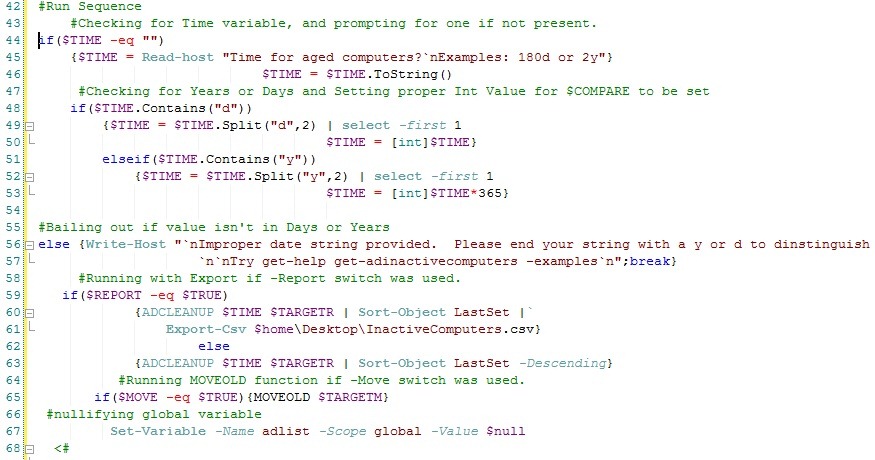
First we check for the $TIME variable and request if it’s not present, then insure it’s in string format.  We’ll check that string for a d or a y to determine how to handle the string and then convert it to an appropriate integer value.  We’ll also bailout if we can’t distinguish the range (since this is a has the potential of causing serious AD harm we want to insure the user is accurate in their input).

Second we’ll check for the –report switch and if it’s present we’ll run the internal ADCLEANUP function and pipe it to export-csv $homedesktopinactivecomputers.csv.  If it’s not then we’ll just generate output to the console.  We pass the $TIME and $TARGETR variable to this function.

Third we check for the –move switch, and if it’s present run the internal function MOVEOLD and pass it the $TARGETM variable.

Fourth and final step, we nullify a global variable set during the ADCLEANUP function.


admove2

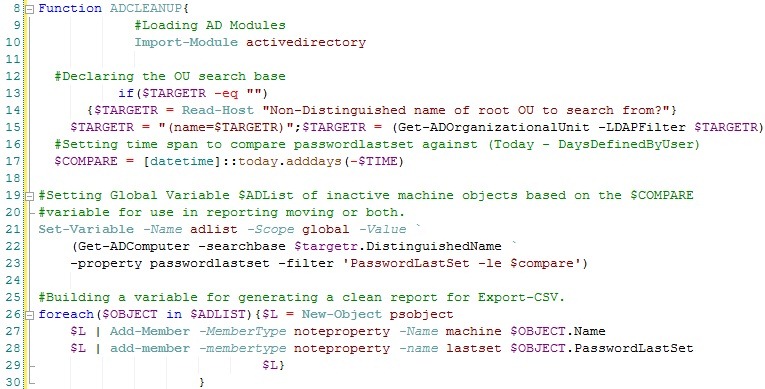
First step of the ADCLEANUP function is to insure the activedirectory module is loaded.  Next it verifies that a $TARGETR variable exists, if not it will prompt for one.  It then will take and search AD for the distinguished name of the OU provided. 

Next we build a date range variable using .Net Date Math.  We will subtract the total number of days by the integer value provided in $TIME from Today’s date and store that in $COMPARE. 

Now we declare a global variable $ADLIST that grabs all computer objects with PasswordLastSet property less than or equal to $COMPARE from the $TARGETR OU.

We then process those objects with a ForEach into a PSObject for reporting purposes specifying the Name and PasswordLastSet properties.  I did this mainly to guarantee a clean csv export.


admove3

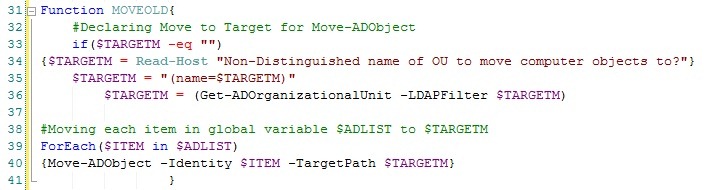
The MOVEOLD function is fairly straight forward.  We check for the $TARGETM variable, if it doesn’t exist we prompt for an input.  We then build $TARGETM into a manageable string, then again we set it as a proper OU.  We run the $ADLIST through another ForEach statement and use Move-ADObject to relocate each $ITEM to $TARGETM.


I posted this script on the script center repository.  I didn’t build in any error catching which I should have, and plan to revisit that at a later date.  I enjoyed writing it so much I wanted to take some time to dissect it and discuss it a bit.  Hopefully this information proves useful to someone with similar goals and or general interest. 

For the the Microsoft.Powershell_profile.ps1 and Microsoft.PowershellISE_Profile.ps1 version of the script, perform the following steps in order:

Uncomment lines 4 and 193

Delete lines 7 through 50

Delete: ,[switch]$HELP from line 6

Delete line 46

Modify line 60 to read:                    `n`nTry get-help Get-InactiveADComputer -Examples`n";break}

For those of you who know me know, I was promoted to a new position within my company about a year and a half ago give or take a few months. I’m now a systems management and engineer for my company. With that position came the rollout of SCCM and its plunged me into an entirely different world inside the IT sector. I do a bit of everything, while still remaining highly specialized around Microsoft’s System Center Configuration Manager (sccm).

Anyway, one of the main industry culture groups I’ve become acquainted with (myitforum) houses a pretty nice collection of us from around the globe. Recently as I was perusing some of the mailing lists I found one of the Microsoft SCCM mvps lives in my same home town. Now, lets pause here a second.

1) SCCM work is very specialized and the community is small.

2) SCCM utilization allows for small teams to manage thousands of pcs fairly effectively.

3) Again, there are few of us, and even fewer still are mvps.

So I of course reached out to him and we have spent a fair amount of time talking shop, work history, industry, war stories, etc. This is something I believe a lot of people take for granted in their respective fields. We finally met together tonight in person and hashed it out for about 4+ hours before finally forcing a break.

It’s amazing the way people are brought into your life and often fill a void you didn’t fully realize was there. For a nerd like me, having someone I can truly sit and talk interests with is an incredible blessing.

Since my beautiful wife Amanda began blogging about our walk with Christ, children, and life in general it’s left me itching for an outlet to express my thoughts, interests, and general ramblings that weren’t limited to 140 characters. (tweet!)  I also wanted a resource for recording things I’ve learned, built, etc so I can leverage that as a learning/teaching tool for myself and others.

I will take some time during this week to work on general formatting and hopefully begin posting things worth reading very soon.